
Signature 365 required permissions
Signature 365 requires the following permissions on the following platforms:
Microsoft 365
To setup Signature 365 to integrate with Microsoft 365 the below permissions are required.
Required permissions for reading directory data
The permissions below are required to import directory, user and group information:
Read directory data
This allows us to import your directory, including users, groups and domains.
Read all users' full profile
This allows us to import your users and profiles for use in your signatures.
Read all user mailbox settings
This allows us to import your users' mailbox settings.
Sign in and read user profile
This is required to connect to your tenant.
This is a screenshot of the permissions request dialog:
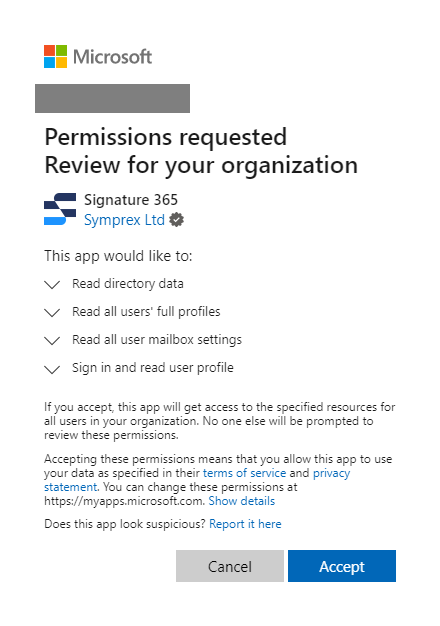
When you click Accept, a Signature 365 enterprise application is created in your Azure AD.
The request is for administrator-level access so Signature 365 can continuously import your directory information in the background. If you are not a Global Administrator when accepting the permissions, you will see a dialog requesting you to login as a Global Administrator.
Required permissions setting up integration with Exchange Online
The permissions below are required to allow Signature 365 to add a domain to your Microsoft 365 tenant that matches the certificate we will use to communicate securely with Exchange Online.
Read and write domains
This allows us to add a domain to your Microsoft 365 tenant that matches the certificate we will use to communicate securely with Exchange Online.
Sign in and read user profile
This is required to connect to your tenant.
This is a screenshot of the permissions request dialog:
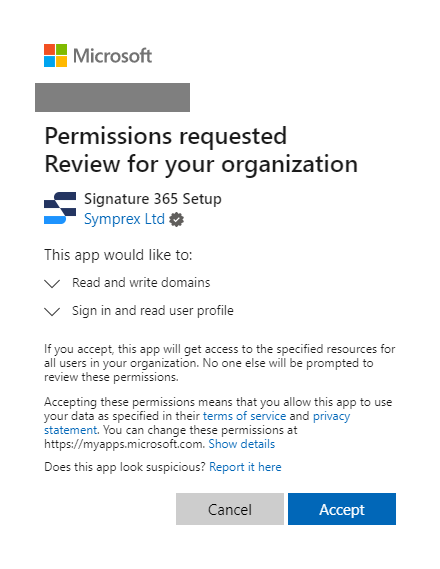
When you click Accept, a Signature 365 Setup enterprise application is created in your Azure AD.
The request is for administrator-level access. If you are not a Global Administrator when accepting the permissions, you will see a dialog requesting you to login as a Global Administrator.
Request to sign in to application to create connectors and transport rule
You will be asked to sign in to the application Microsoft Exchange REST API Based PowerShell. You must sign in as a Global Administrator and make sure to enter the credentials for the correct Microsoft 365 tenant.