
Managing Outlook's default signature options with the Signature 365 Outlook add-in
Scenario
You are looking to understand the options for setting user signatures using the Signature 365 add-in.
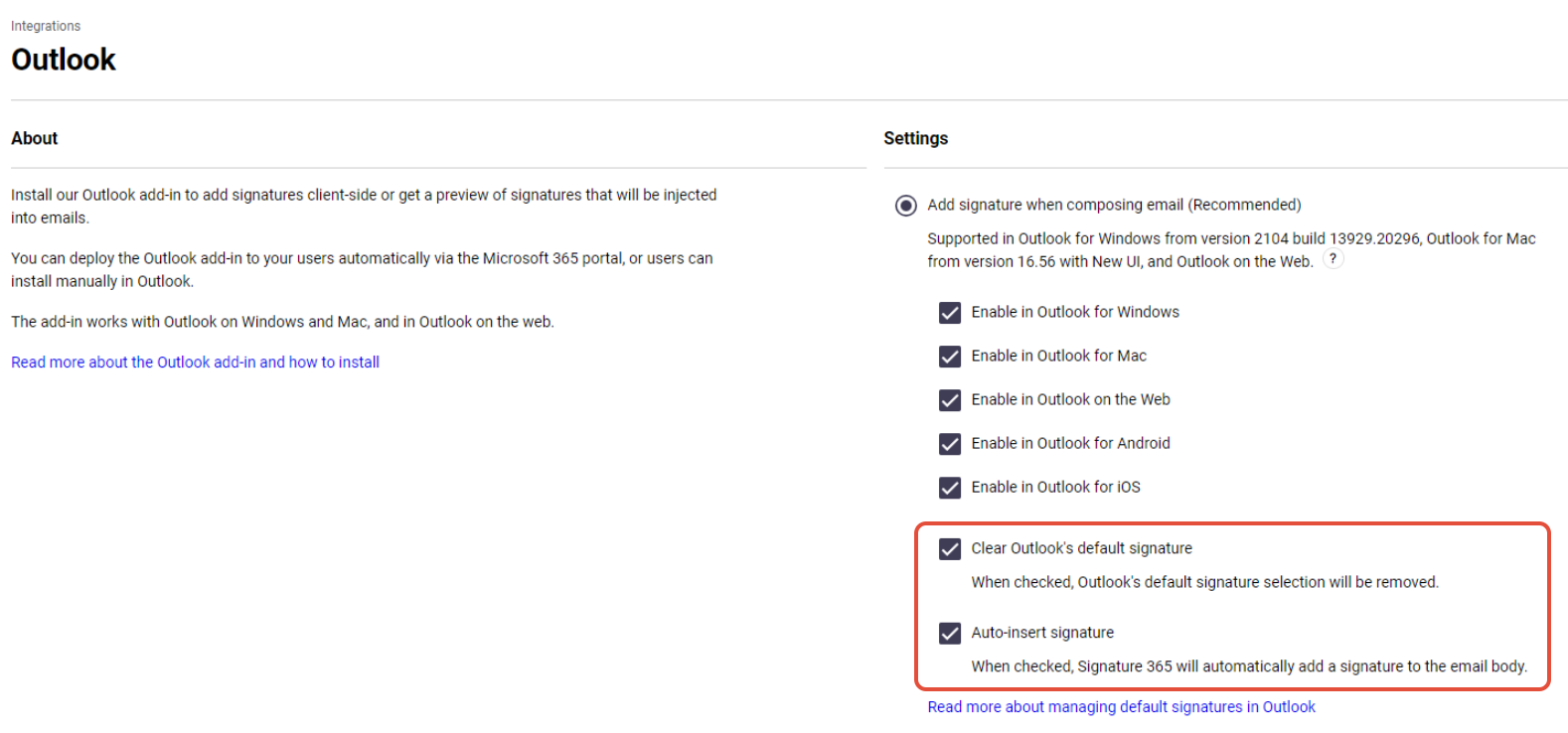
The Signature 365 add-in is configured to set the default internal Outlook signatures to none, and insert the default signature as set in the portal. This is done to ensure that signatures defined for the user in Signature 365 are correctly set, and will always remove a default signature set by the user.
Solution
It is possible to configure the behaviour of the add-in to change the behaviour of the auto-insert function, and / or to prevent the internal Outlook default signature being set to none.
You can configure this by following the steps below:
- Log on to the Signature 365 portal and open the Outlook Integrations page from Integrations -> Outlook.
- Deselect the Clear Outlook's default signature or Auto-insert signature options as required for your use case.
More information
You can remove access to all classic Outlook signature settings using the information in the article Managing personal signatures fonts and stationery for Outlook desktop.
You can remove access to signatures for devices using roaming signatures (New Outlook / OWA) by using the information in the article Disabling Outlook signatures in New Outlook and OWA.
How to set Outlook default fonts for all users
Use the Symprex Email Signature Utility to set default Outlook messaging fonts for all users with Signature 365.
Managing personal signatures, fonts and stationary for Classic Outlook desktop
Use the Symprex Email Signature Utility to manage Classic Outlook fonts, stationery, and personal signatures on local devices.